Is your Windows PC feeling sluggish, bogged down, or running out of space? Over time, PCs build up junk files — temporary data, leftover installer files, cache, and other clutter that can slow performance and eat storage. Luckily, you don’t need to spend money to clean up your computer. There’s a suite of free Windows tools that can safely remove junk files, optimize performance, and help your system run faster.
In this article, we’ll explore the best free tools every Windows user should know to clean junk files and boost overall performance. You’ll find step‑by‑step advice, use‑case tips, and how to use each tool effectively without risking your data.
Why Cleaning Junk Files Matters
Before we dive into tools, it’s important to understand why junk piling up can hurt performance:
-
Slower Startup & Shutdown: Excess temp files and startup clutter slow system processes.
-
Full Storage Drives: Low free space can make Windows run sluggishly, especially on SSDs.
-
Fragmented Files: Older files and cache buildup can reduce read/write efficiency.
-
Unneeded Registry Entries: Leftover entries from uninstalled software can slow down systems.
Junk files won’t crash your PC — but they will drag it down. Regular cleanup keeps your system responsive, secure, and more efficient.
1. Windows’ Built‑In Disk Cleanup
Best for: Quick removal of core temp and system clutter
Why it’s great: No downloads needed; safe and Microsoft‑supported
How to use:
-
Press Win + S, type Disk Cleanup, and open it.
-
Choose the drive you want to clean (usually C:).
-
Check boxes like Temporary Files, Recycle Bin, System cache, etc.
-
Click Clean up system files for deeper cleanup (including Windows Update leftovers).
Tips:
✔ Run it monthly to keep buildup under control.
✔ Always review selected items before deleting.
Why it helps: Disk Cleanup safely removes unneeded files that Windows accumulates over time — especially after updates.
2. Storage Sense (Built Into Windows 10/11)
Best for: Automated cleanups
Why it’s great: It runs automatically on a schedule you choose
How to enable:
-
Go to Settings → System → Storage.
-
Turn on Storage Sense.
-
Customize how often it runs (e.g., every day, week, month).
-
Choose what it deletes — temp files, recycle bin items, or old downloads.
Pro tip: Turn on auto‑cleanup of locally available cloud files to save space if you use OneDrive.
Why it helps: You don’t need to remember cleanup — Storage Sense takes care of it.
3. CCleaner (Free Version)
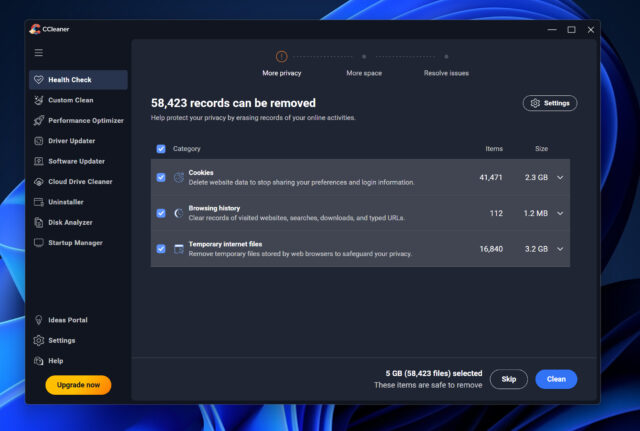


Best for: Deep cleaning beyond built‑in tools
Why it’s great: A popular classic that removes junk and helps tidy registry errors
How to use:
-
Download CCleaner Free from the official website.
-
Run Cleaner → analyze junk files (temporary files, browser cache, logs).
-
Click Run Cleaner to remove them.
-
Optionally, use Registry → Scan for Issues then Fix selected Issues (back up when prompted).
Tips:
✔ Stick to default settings if you’re new — they’re safe.
✔ Avoid aggressive registry cleaning if you’re unfamiliar with it.
Why it helps: CCleaner finds additional clutter — browser leftovers, thumbnails, and app junk — that built‑in tools miss.
4. BleachBit
Best for: Open‑source, privacy‑focused cleanup
Why it’s great: Free, open source, and supports many app caches
How to use:
-
Download BleachBit from the official site.
-
Open and check the types of data you want to remove (e.g., browser caches, temp data).
-
Click Clean to remove selected items.
Tips:
✔ Review choices before cleaning — it can be aggressive.
✔ Great for privacy cleanup alongside junk removal.
Why it helps: BleachBit removes a wide range of temporary and cached files — even from third‑party apps like Firefox, Chrome, or LibreOffice.
5. Wise Disk Cleaner
Best for: Simple interface + powerful cleanup
Why it’s great: Easy to use, effective, and lightweight
How to use:
-
Install Wise Disk Cleaner.
-
Choose Common Cleaner to scan for junk files.
-
Review and clean results.
-
Use Slimming System to remove old Windows updates and unused system components.
Pro tip: Use its Disk Defrag feature afterward to organize your drive (more helpful on HDDs than SSDs).
Why it helps: Wise Disk Cleaner offers intuitive cleanup with a one‑click scan and free tools for defragmentation.
6. Autoruns (Sysinternals)
Best for: Removing unwanted startup programs
Why it’s great: Identifies every startup entry — not just the common ones
How to use:
-
Download Autoruns from Microsoft Sysinternals.
-
Run it and review the list under the Logon tab.
-
Uncheck items you don’t want launching at startup.
Tips:
✔ Be cautious — only disable things you recognize.
✔ Avoid disabling essential Windows services.
Why it helps: Faster startup = faster overall performance. Autoruns gives you pinpoint control.
7. Microsoft Safety Scanner
Best for: Finding malware that may be slowing your PC
Why it’s great: Free tool from Microsoft for occasional scans
How to use:
-
Download the tool — it doesn’t install permanently.
-
Run a Full Scan to remove potential threats.
Tips:
✔ Use periodically as a secondary scan alongside your regular antivirus.
Why it helps: Malware and PUPs (Potentially Unwanted Programs) can generate junk and drag systems down. This tool + cleanup maximizes performance.
Maintaining Peak Performance
Cleaning junk files is a great start — but long‑term performance also requires:
✔ Keeping Windows Updated
Latest updates = optimized performance and fewer slowdowns.
✔ Updating Drivers
Out‑of‑date drivers can cause system lag, especially on graphics and storage controllers.
✔ Removing Unused Programs
Uninstall apps you no longer use via Settings → Apps → Installed apps.
✔ Managing Startup Apps
Beyond tools like Autoruns, check Task Manager → Startup to disable unnecessary launchers.
Frequently Asked Questions (FAQs)
Q1: Will cleaning junk files delete my personal data?
No — reputable tools only remove temporary or cache files. Your documents, photos, and personal files remain untouched.
Q2: How often should I clean junk files?
A monthly cleanup is ideal for most users. If you use your PC heavily (gaming, editing, browsing), weekly is fine.
Q3: Are free tools safe to use?
Yes, as long as you download them from their official websites and review options carefully before deleting anything.
Q4: Does SSD need defragmentation?
No — SSDs don’t benefit from traditional defrag. Tools like Wise Disk Cleaner focus on file cleanup, which does help.
Q5: Can junk files really slow down my PC?
Absolutely. Excess temp files can make Windows search longer for system files and take up valuable storage, causing slower performance and delayed responses.
Final Thoughts: Clean Smarter, Not Harder
Cleaning junk files and boosting performance doesn’t require expensive software or geeky commands. With the best free Windows tools — from Disk Cleanup and Storage Sense to powerful third‑party utilities like CCleaner, BleachBit, and Wise Disk Cleaner — you can maintain a fast, responsive PC with minimal effort.
Remember to combine regular cleanup with good habits like updating Windows, managing startup apps, and periodically scanning for malware. With just a few minutes each month, your Windows PC will stay optimized, organized, and ready for whatever you throw at it — work, play, or both.